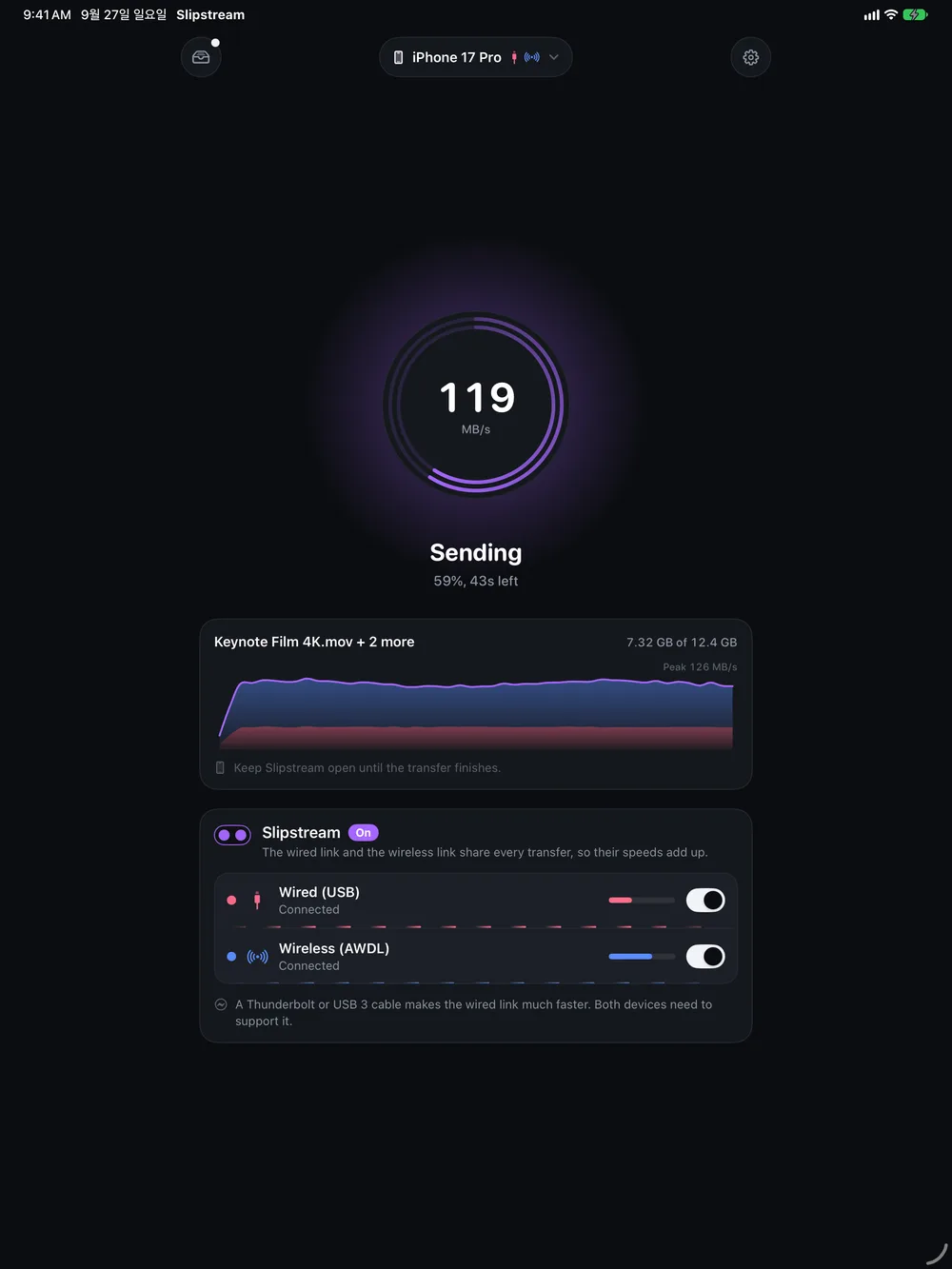
For iPhone · iPad · Mac
Your files,
in the slipstream.
Cable and wireless, at the same time.
The fastest way to move big files between iPhone, iPad and Mac.
Using both
Switch a connection off to see the difference.
Every other way uses one connection.
AirDrop sends over wireless.A cable sends over the cable.iCloud goes up to the internet and back down again.
Each one tops out at the speed of a single connection. Slipstream uses the cable and the direct wireless link at the same time, so its top speed is the two added together.
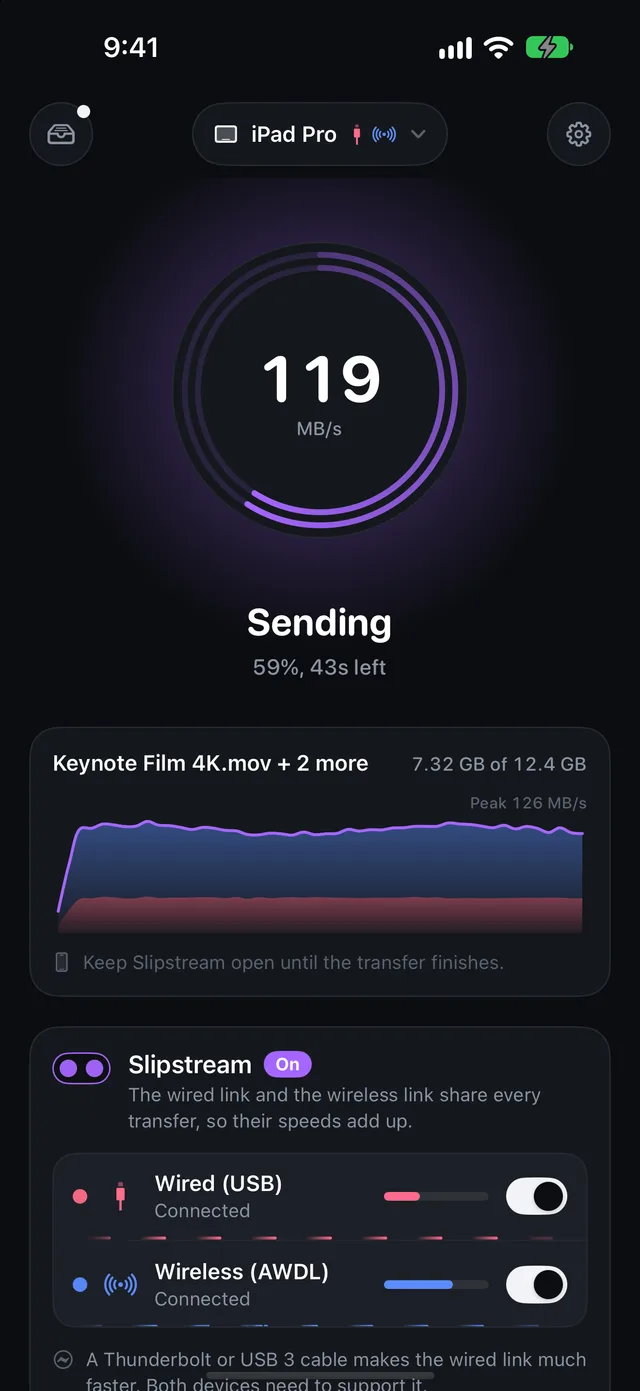
Built so both connections run flat out.
Nothing waits
Whichever connection is free takes the next part of the file, so the faster one naturally carries more.
Any order is fine
Each part is written straight to its place in the file, however it arrives.
Unplug anytime
If a connection drops, the other one picks up what was left. The transfer just keeps going.
Why “Slipstream”?
In racing, the car in front punches a hole through the air. The car tucked in right behind it meets less resistance, so it goes just as fast with less effort and can even pull ahead. That pocket of air is the slipstream. In the app, wireless rides in the cable's slipstream on every transfer, and the two together move faster than either one could alone.
How long does 10 GB take?
We sent the same file from iPhone to iPad a few different ways.
Purple means fastest, just like on a race timing screen.
Measured with one 10 GB file between iPhone and iPad. Your times will vary with your devices, cable, files and surroundings.
* iCloud Drive is an estimate: uploading at 100 Mbps, then downloading at 500 Mbps. With a slower connection it takes longer.
Mac to Mac, no drive needed.
Moving a big project between two Macs usually means copying it onto an external SSD, carrying it over and copying it off again. With Slipstream, you just plug the two Macs together and send.
Copy it onto a drive, then copy it off again.
Connect with a Thunderbolt cable and send. One step.
As easy as AirDrop.
 1
1Open it on both devices
They find each other automatically. Got a cable? Plug it in.
 2
2Tap the circle, pick your files
On a Mac, just drag them onto the circle.
 3
3Accept on the other side
Files show up in the Files app, in the Slipstream folder.
Locked down, start to finish.
Your files go straight from one device to the other and stay encrypted the whole way. Nobody else can read them. Not us, and not anyone else on your network.
- AES-256-GCM
- X25519 key exchange
- HKDF-SHA256
- Device to device
Questions, answered.
How is this different from AirDrop?
AirDrop sends over a wireless link only. Slipstream uses that same kind of direct wireless link and a cable at the same time, so their speeds add up. In our tests a 10 GB file took about 1:23 with Slipstream and about 2:47 with AirDrop.
What cable do I need?
Any USB-C cable between the two devices works. A USB 3 or Thunderbolt cable is faster, if both devices support it. Between two Macs, use a Thunderbolt cable.
Does it work without a cable?
Yes. Without a cable, Slipstream sends over the direct wireless link alone. Plug in a cable any time to add the second connection.
Do I need Wi-Fi or an internet connection?
No internet needed. Wi-Fi just needs to be turned on for the wireless link. You don't have to be connected to a network.
Is there a file size limit?
Slipstream doesn't set one. The receiving device just needs enough free space.
Can I send folders?
Not yet. Compress the folder into an archive first, or select the files inside it. You can send many files at once.
Where do received files go?
On iPhone and iPad, into the Slipstream folder in the Files app. On a Mac, into Downloads › Slipstream.
Does it work with Windows or Android?
No. Slipstream works between iPhone, iPad and Mac.
Is it really free?
Yes. Slipstream is free on the App Store, with no account to create.
Works with iPhone, iPad and Mac.
Send in any direction, between any two. Needs iOS 17, iPadOS 17 or macOS 14 or later.